
Teams is a chat-based workspace in Office 365. Teams facilitates project collaboration within one application. This guide highlights key functionality of the app.
Starting/Joining a Call
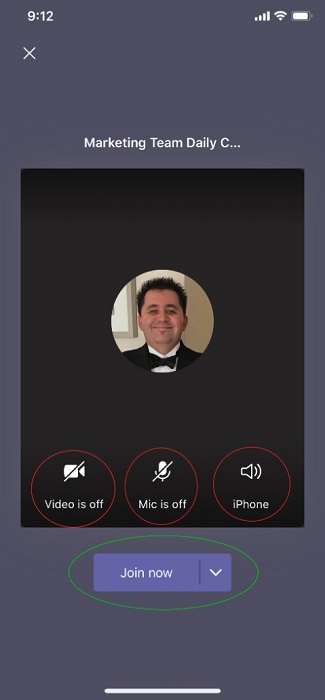
Before you join a call, you will see a screen similar to below.
Key Functions
By default, all your calls will start with video and microphone input as off to prevent unintended communication. Tapping the first two red circles allow you to enable or disable them as needed.
The red circle on the right allows you to change your audio output. In this example, the audio output is set to play through the iPhone ear speaker. If you click on it, it will allow you to change the audio output to play through the Speakerphone mode, or Bluetooth devices, such as a car speaker or portable speaker.
If your audio and video settings are fine, you can click on the Join now button (green circle) to join the meeting.
Functions during a Call
During the call you will see a screen similar to below.

Key Functions
- Chat - Allows you to send a chat message to all present participants or individually. Within chats, you can also share files by sending attachments.
- Meeting Participants – This list allows you to see who is currently in the meeting. You can also invite more people to the meeting here.
- Video toggle – Tap this to toggle your video camera on or off during the meeting
- Microphone toggle – Tap this to toggle your microphone to Mute or Speak
- Speaker toggle – Tap this to toggle your speaker to Speaker phone, Bluetooth devices, etc.
- More Options – Tap this to access the following options: Record meetings, Put yourself on hold, have the meeting call you at another number, share a file, access the keypad, and turn off incoming video.
- End Call – Tap this to terminate the meeting
Comments
0 comments
Article is closed for comments.