
MICROSOFT TEAMS GUIDE
Teams is a chat-based Office 365 workspace, allowing teams to collaborate using one application.
Key Benefits of Teams
- One centralized hub
- Create, edit and find content using Word, Excel, Access, PowerPoint, and OneNote
- Integrated with Outlook Calendars and meetings
- Share large files using SharePoint, OneDrive or OneNote
- Call and meet team members
- Chat and instant messaging features
MAIN PAGE OVERVIEW
 |
|
USING TEAMS
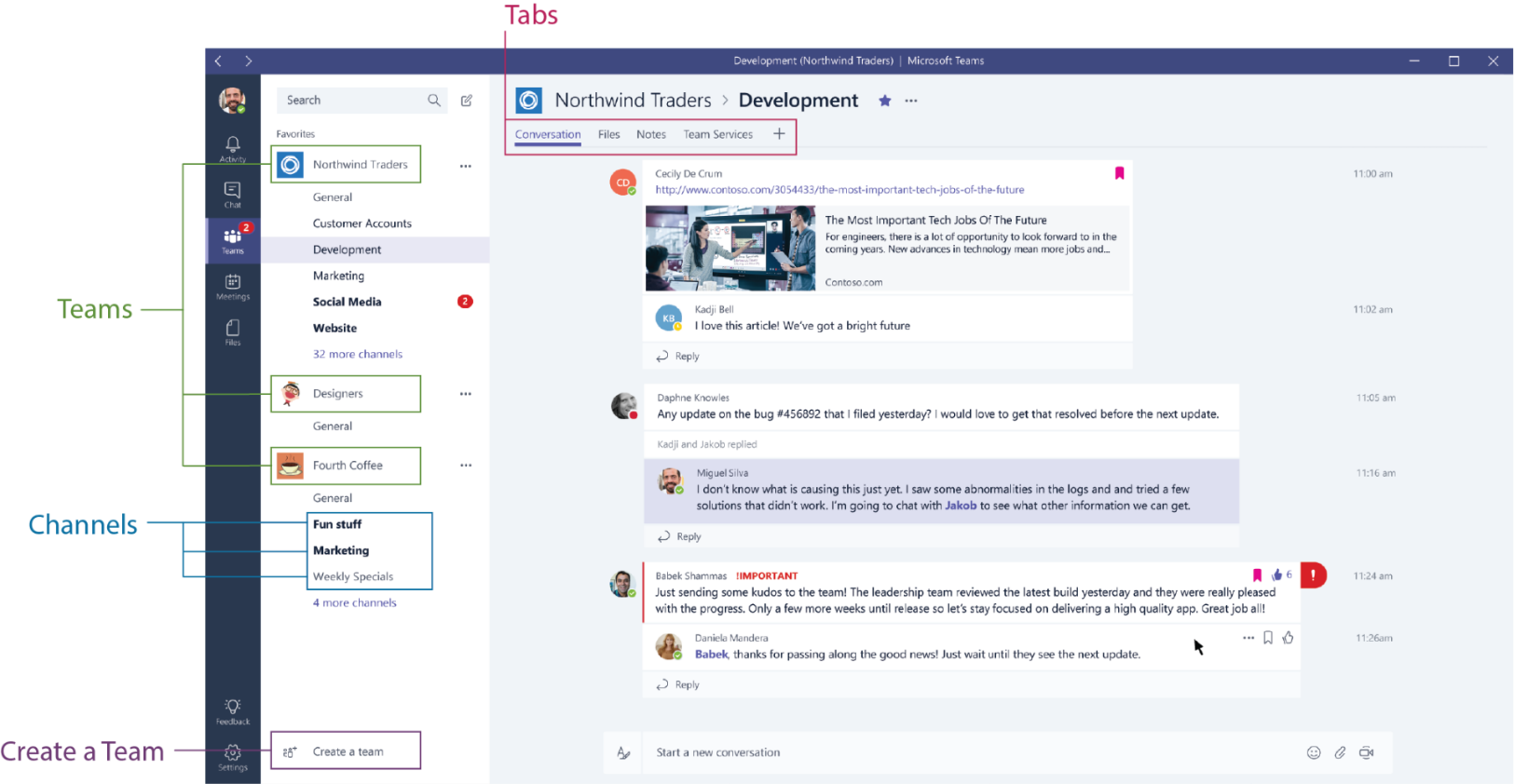
TABS :
Each Channel all have their own tabs along the top. Conversation (group chat), Files (shared documents) and Notes (shared OneNote) are automatically created and you can then add your own tabs. Here is an explanation of the default tabs:
- Conversation: Conversations are one of the key features of Teams, allowing each Team to have a centralized discussion that is saved and easily searchable —from file sharing to video calls.

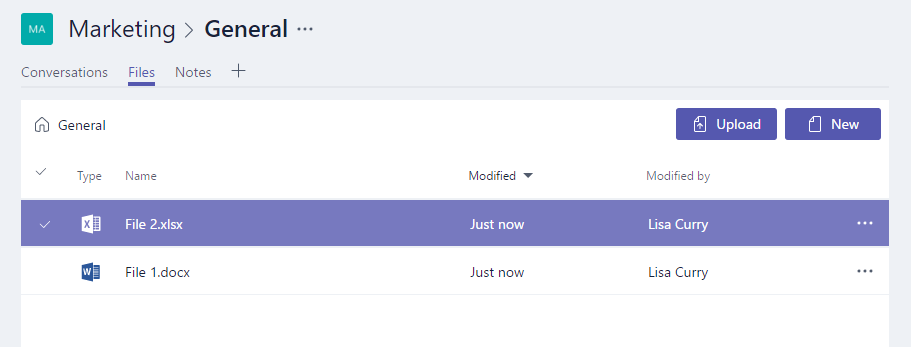
- Files: In your Teams window, you can perform a variety of tasks directly within that application or your browser if you are using the web to view Teams. This makes working easier because you avoid having to switch between different applications. From the files tab you can delete, download, move files, open, copy, edit or get a link to share with others – giving you all the key features you would get in the native apps.
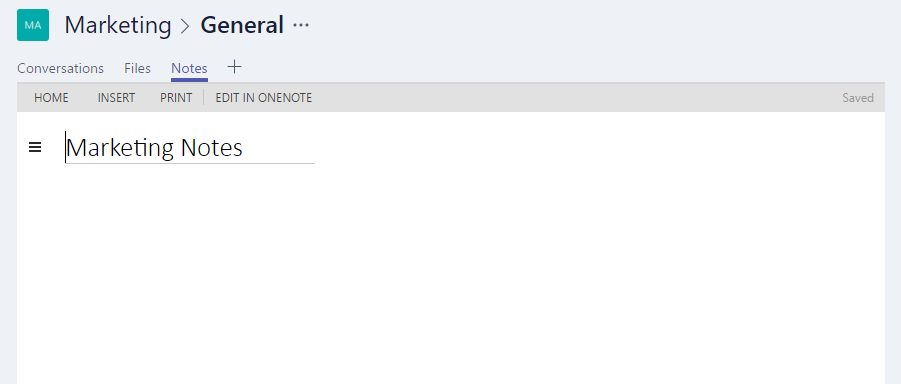
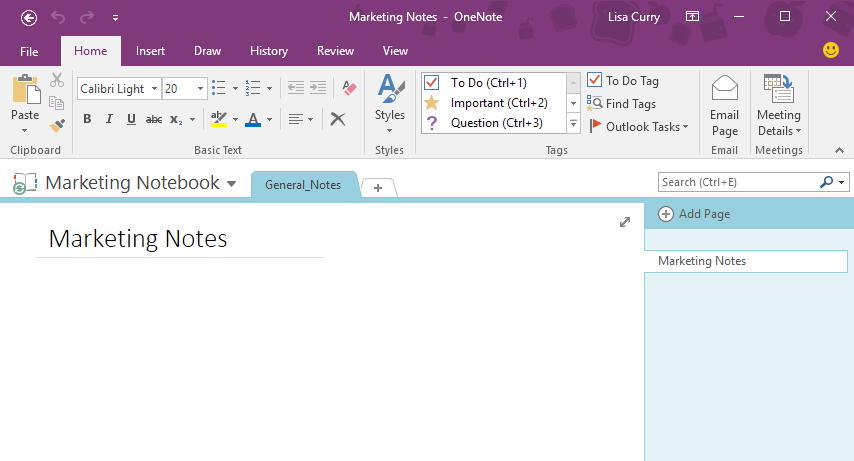
- Notes: Notes takes you to the Team shared OneNote. Within Teams you can view and edit your OneNotes (directly within the Teams window) or you can click to edit in the OneNote app.
- Adding Tabs: You can also add your own tab, which currently include Planner, Excel spreadsheets, Word documents, Power BI dashboards and more including 3rd party and future applications.
TEAMS :
This is a list of all the groups that you are part of, whether you created yourself or were invited to by someone else. If you click on the ellipsis (…) symbol to the right of a team name, it will open the following commands:
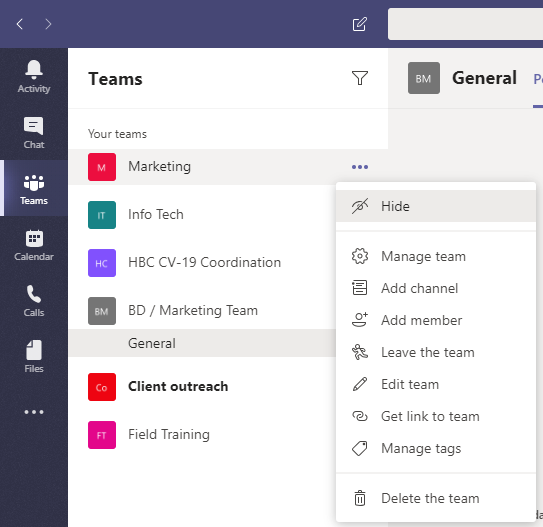
- Hide: This will hide the group which is helpful when you are part of many groups and want to hide ones where you have little involvement in or are not that important.
- Manage Team: This will open up a list of the current team members, where you can edit member permissions and add or remove members.
- Add Member: Self-Explanatory
- Leave the team: Self-Explanatory
- Add Member: Self-Explanatory
- Edit Team: Change the Team Name & Privacy Settings
- Get link to team: Creates a web link that you can send via email or paste into an internet browser to open there.
- Manage tags: Tags are a grouping mechanism used to notify members of that tag all at once using the @ followed by the tag name (ie @testgroup)
- Delete the team: Self-Explanatory
CHANNELS :
This is a list of all the channels within the group. Channels are like topics in the group and is where the work actually gets done—where text, audio, and video conversations open to the whole team happen, where files are shared, and where apps are added.
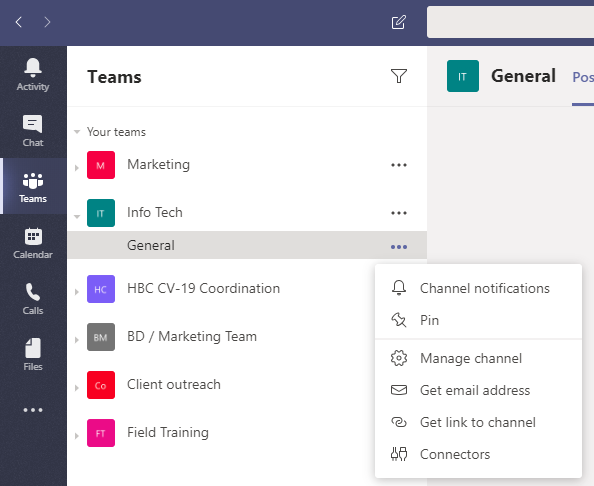
- Channel Notifications: Here you control what you would like to get notified on, such as posts, mentions, etc.
- Pin: This is a valuable as it will pin your most important Teams/Channels and locks them to the top of the list.
- Manage channel: Allows you to set permissions for the channel, in case you want to limit who can post.
- Get email address: Generates an email address that you can paste into an Outlook email that will email the entire team.
- Get a link to the channel: Generates a link to the channel that can be opened via a web browser
- Connectors: This is were you can link 3rd party apps to the channel
CREATE A TEAM :
Clicking this button allows you to create a team.
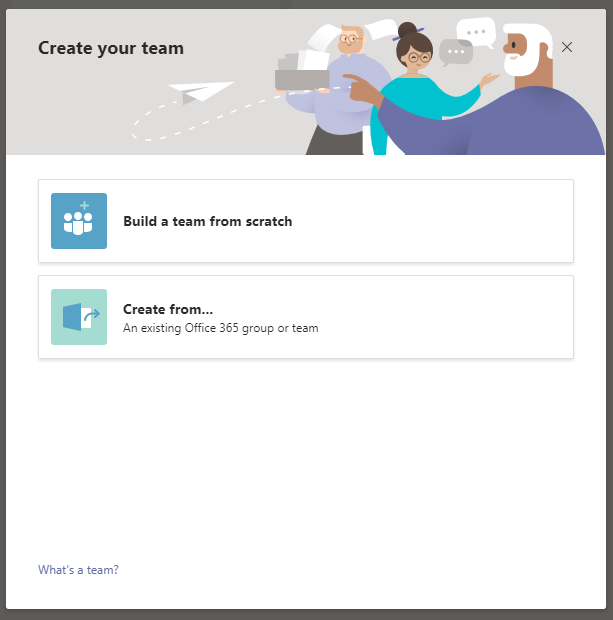
- Build a team from scratch: By choosing this option, you will create a customized team
- Create from…: This option allows you to create a team using one of our established distribution group (Costa Mesa, LA, Field, Accounting, etc.)
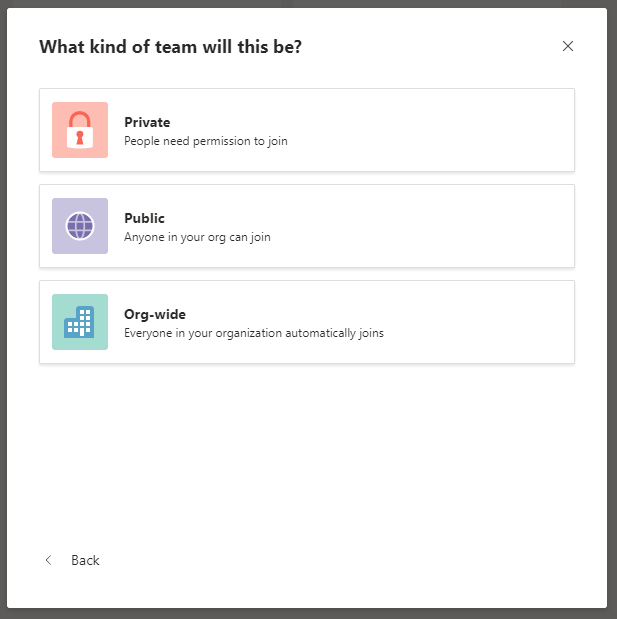
- Private: Members will need to be invited to join (Please note that you can invite people outside of HBC to the team)
- Public: Anyone with a @howardbuilding.com email can join
- Org-wide: This kind of team will automatically add every employee in the company
Comments
0 comments
Article is closed for comments.