
Teams is a chat-based workspace in Office 365 that allows teams to work together on projects within one application to enhance teamwork. This guide will show you the functionality of the app so you can use it for effectively.
Starting/Joining a Call
Before you join the call you will see a screen like the one below. 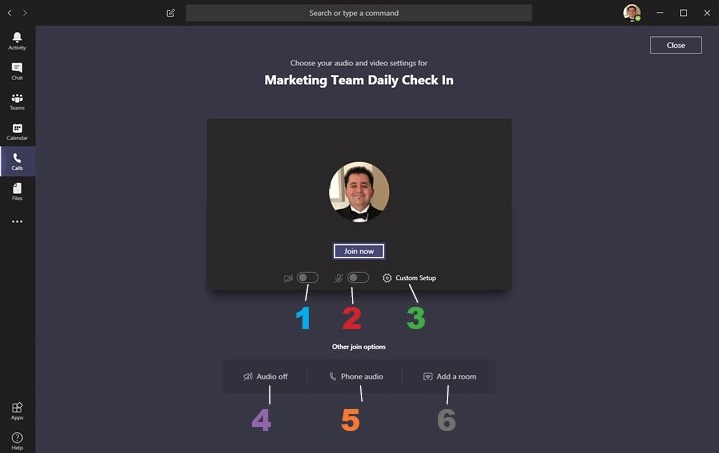
Key Functions
- Video Toggle (will be greyed out if your computer has no camera) - Click this to toggle your video on or off during the meeting
- Microphone Toggle (will be greyed out if your computer has no mic) – Click this to mute yourself or remove the mute
- Custom Setup – This will open important options that allow you to select your speaker, microphone and video source. If it says none under any of the sections, it means you either don’t have one and there is an issue with it and its not working properly. You can also do a test call here to see if your devices are working properly.
Other Join Options
- Computer Audio – Join the meeting automatically with your computer’s audio equipment
- Phone Audio – Click this to join the call via telephone if you don’t have a mic on your computer. The app will ask you to enter your phone number and it will call you.
- Add a room – Don’t worry about this option as it requires a Team Meeting Room which we currently don’t have
Functions during a Call
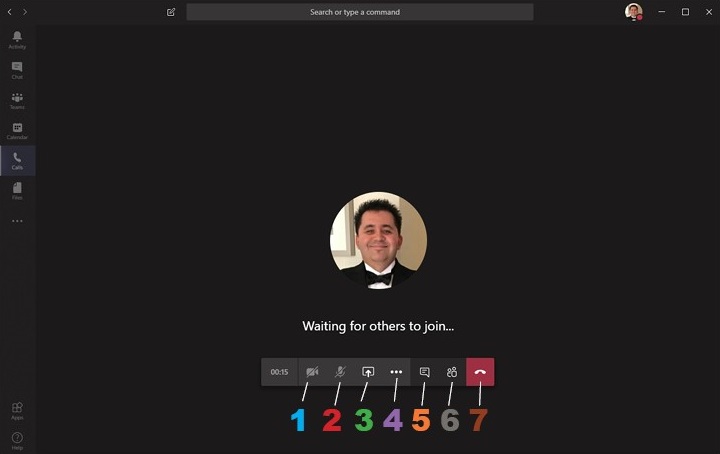
During the call you will see a screen like the one below. This is an overview of what you can do during a call.
Key Functions
- Toggle - Click this to toggle your video on or off during the meeting
- Microphone Toggle – Click this to mute yourself or remove the mute
- Sharing – Click this to share your screen, share a document, or share a blank whiteboard that you can draw on.
- More Options – Click this to access the following options: Show Device settings, show meeting notes (if any), Show Meeting Details, Toggle Full Screen, Record meeting, end meeting, access the keypad, and turn off incoming video.
- Chat – Allows you to send a chat message to the whole team on the call or individual people on the call. You can also share files via chat using attachments
- Meeting Participants – This list allows you to see who is currently in the meeting. You can also invite more people to the meeting here.
- End Call – Self-explanatory
Comments
0 comments
Article is closed for comments.