
Creating Email Rules
Find an email that you wish to have automatically moved to another folder.
- In the toolbar, click on the Rules option
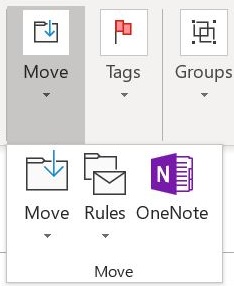
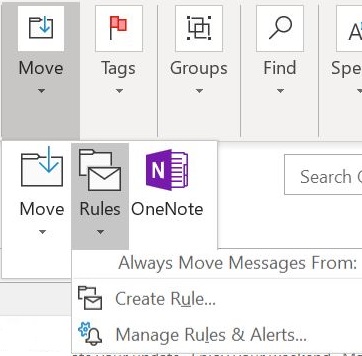
- In the drop-down menu, click on Create Rule.
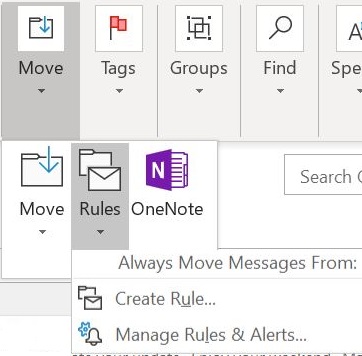
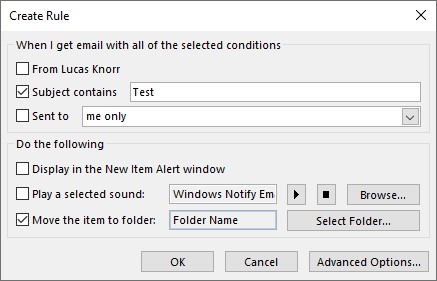
- Check-mark and/or type in the conditions for the rule to apply
- Check-mark the Move the item to folder option
- Click Select Folder and choose the destination folder the emails will be moved into
- Click OK.
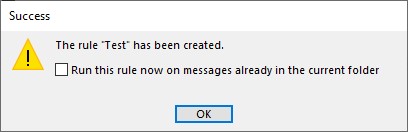
Optional: Checkmark the option Run this rule now on messages already in the current folder to apply the filter on all existing messages in the chosen folder.
Modifying Rules
- From your Inbox, select the Move option in the toolbar
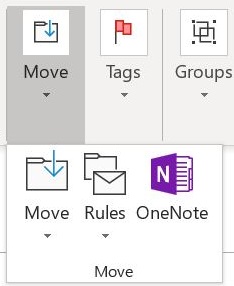
- Select the Rules option
- In the drop-down menu, select Manage Rules and Alerts
- On the resulting window, click Change Rule to modify a rule.

- Click on Delete to remove a rule.

- Click Yes to confirm, future messages will no longer have the rule applied.
Comments
0 comments
Article is closed for comments.