
Create a Meeting Invite
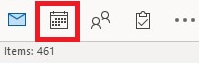
Go to the Calendar view in Outlook by clicking the Calendar icon button near the bottom-left corner of the application window
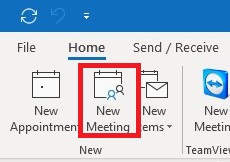
Click New Meeting icon button near the upper-left corner of the application window
A new window will pop-up for an Untitled - Meeting
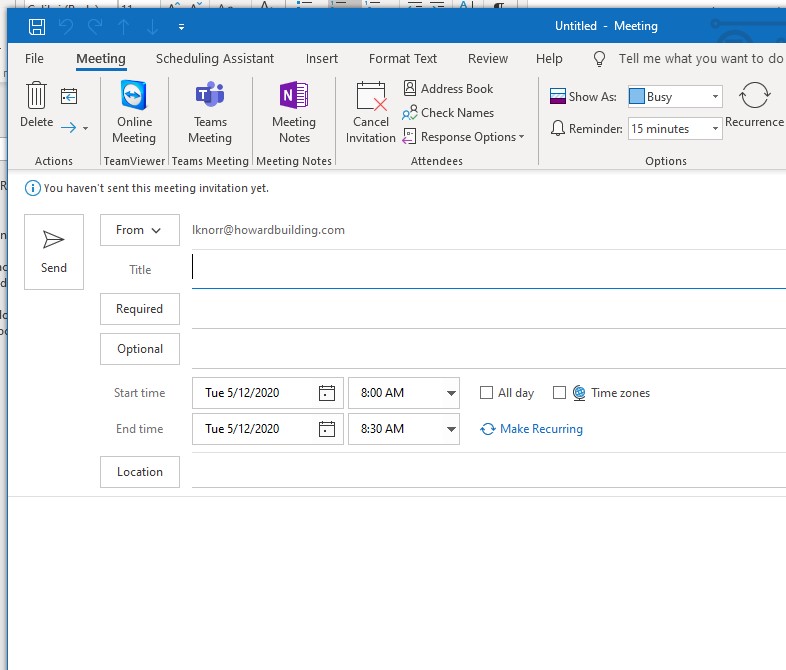
- Type in a Title, Required attendees, Optional attendees.
- Choose the Start and End date and time.
- Type in the Location(optional)
- Type the message text that will be associated with the meeting invitation
Add File Attachment
Click Insert on the upper menu toolbar.

Click Attach File
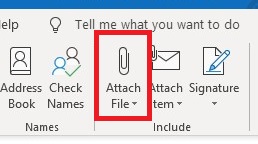
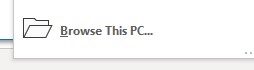
Choose Browse this PC in the drop-down menu.
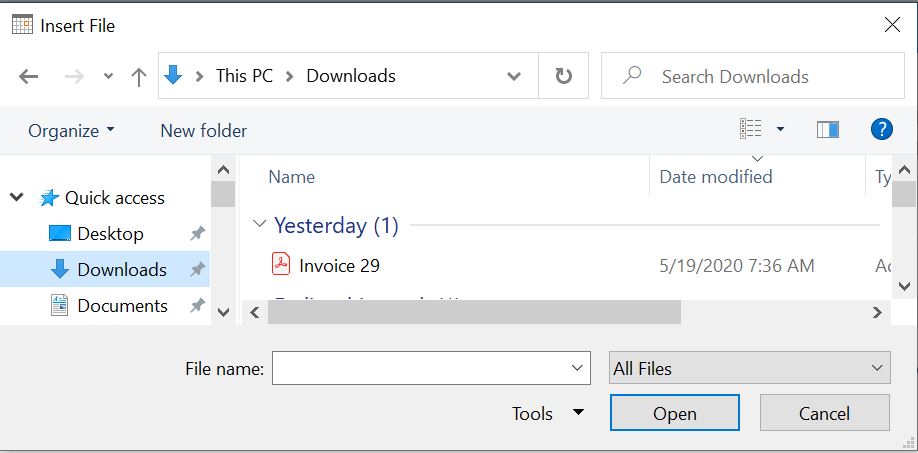
Find the file you’d like to attach, and then click Open
Comments
0 comments
Article is closed for comments.